With AxlMint, you can create a BEP-20 token on BNB Smart Chain without any coding. Simply enter the main token details,
choose the features you want to add, and confirm the creation through your wallet. Create Token🔗
1. Enter Your Token Details
If you are not already connected to BNB Smart Chain, switch to it using the network selector in the top
header

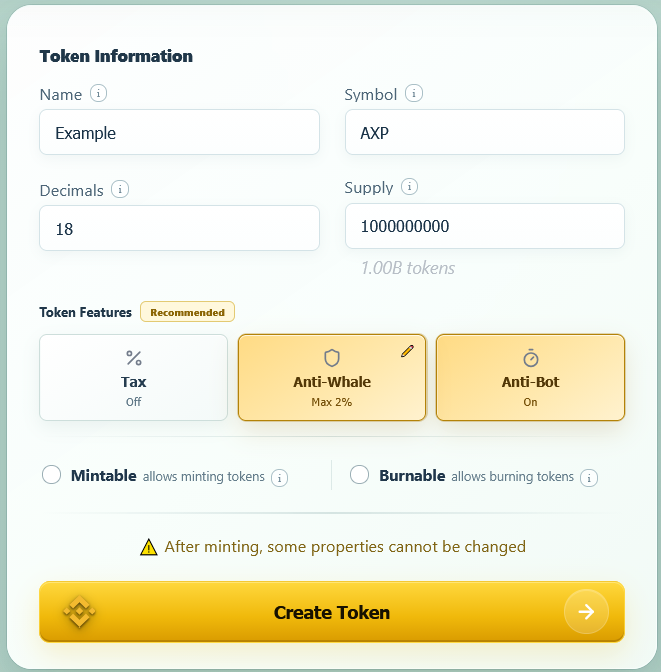
(as shown above). Then connect your wallet, open Create Token, and enter the main details: Name, Symbol, Decimals, and Supply.
The Name identifies your project, while the Symbol is the ticker used for the token, such as AXE. For most BEP-20 tokens, you can keep 18 decimals, which is the most common standard on the network. Under Supply, enter the number of tokens that will be created initially. Example: 1,000,000,000 AXE. Double-check the name, symbol, and supply before creating the contract.
2. For a Basic Token, Keep the Extra Features Disabled
If you only want a simple token, you can use:
Tax: Off · Anti-Whale: Off · Anti-Bot: Off · Mintable: Off · Burnable: Off
With this configuration, the token is created without advanced features and without additional
Mint or Burn capabilities. This is a straightforward setup for anyone who wants to start with a basic token.
3. Understand the Extra Features
Tax
Allows you to apply a percentage fee to token buys and sells. You can define the Buy Tax, Sell Tax, and Recipient Wallet. If the Tax feature is not purchased during token creation, it cannot be activated later. If it is purchased, the owner can adjust, disable, and re-enable the feature.
Anti-Whale
Sets a maximum limit on how many tokens a single wallet can hold. On AxlMint, the limit can be configured between 1% and 10% of the total supply. Example: with a supply of 1 billion tokens and a 2% limit, a single wallet can hold up to 20 million tokens. Just like the Tax feature, Anti-Whale must be purchased during token creation to be available later.
Anti-Bot
Adds protection against rapid and repetitive transactions commonly associated with bots during a token launch.
If purchased during creation, Anti-Bot can later be disabled and re-enabled by the owner. If it is not purchased during creation, it cannot be activated afterward.
Mintable
Allows the owner to create additional tokens in the future, increasing the total supply. This can be useful for rewards, reserves, or planned future emissions. If you want a supply that cannot be increased through minting, keep this option disabled.
Burnable
Enables the Burn function, allowing tokens to be permanently destroyed. Burning tokens can be used to reduce the supply and create a more deflationary token model. If Burnable is not purchased during creation, this capability cannot be enabled later for that token.
4. Review the Preview and Costs
Before creating your token, review the Preview and carefully check:
Name, Symbol, Supply, and enabled features.The Cost Breakdown panel automatically displays the base fee and any additional costs from the selected features. Always use the amount shown directly on the page before confirming the transaction. In addition to the AxlMint fee, you will also pay the standard BNB Smart Chain gas fee.
5. Create Your Token
After reviewing everything, click: Create Token 🔗
Your wallet will ask you to confirm the transaction. Review the details, approve the transaction, and wait for blockchain confirmation. Once the process is complete, AxlMint will display the contract address of your new token and provide an option to view it on BscScan. Save this address: it is the official identifier of your token on BNB Smart Chain.
Which Configuration Should You Use to Get Started?
For a basic token:
18 Decimals · Tax Off · Anti-Whale Off · Anti-Bot Off · Mintable Off · Burnable Off
Only enable additional features when they genuinely make sense for your project's tokenomics.
Important: Tax, Anti-Whale, and Anti-Bot are capabilities defined during token creation. If they are not purchased at that stage, they cannot simply be activated later.
Quick Summary
Connect wallet → Enter Name / Symbol / Decimals / Supply → Choose features → Review Preview and costs → Create Token → Confirm in your wallet → Copy the contract address